


BACK-TO-SPORTS SALE: Save up to €300 / US$350

08/04/2026
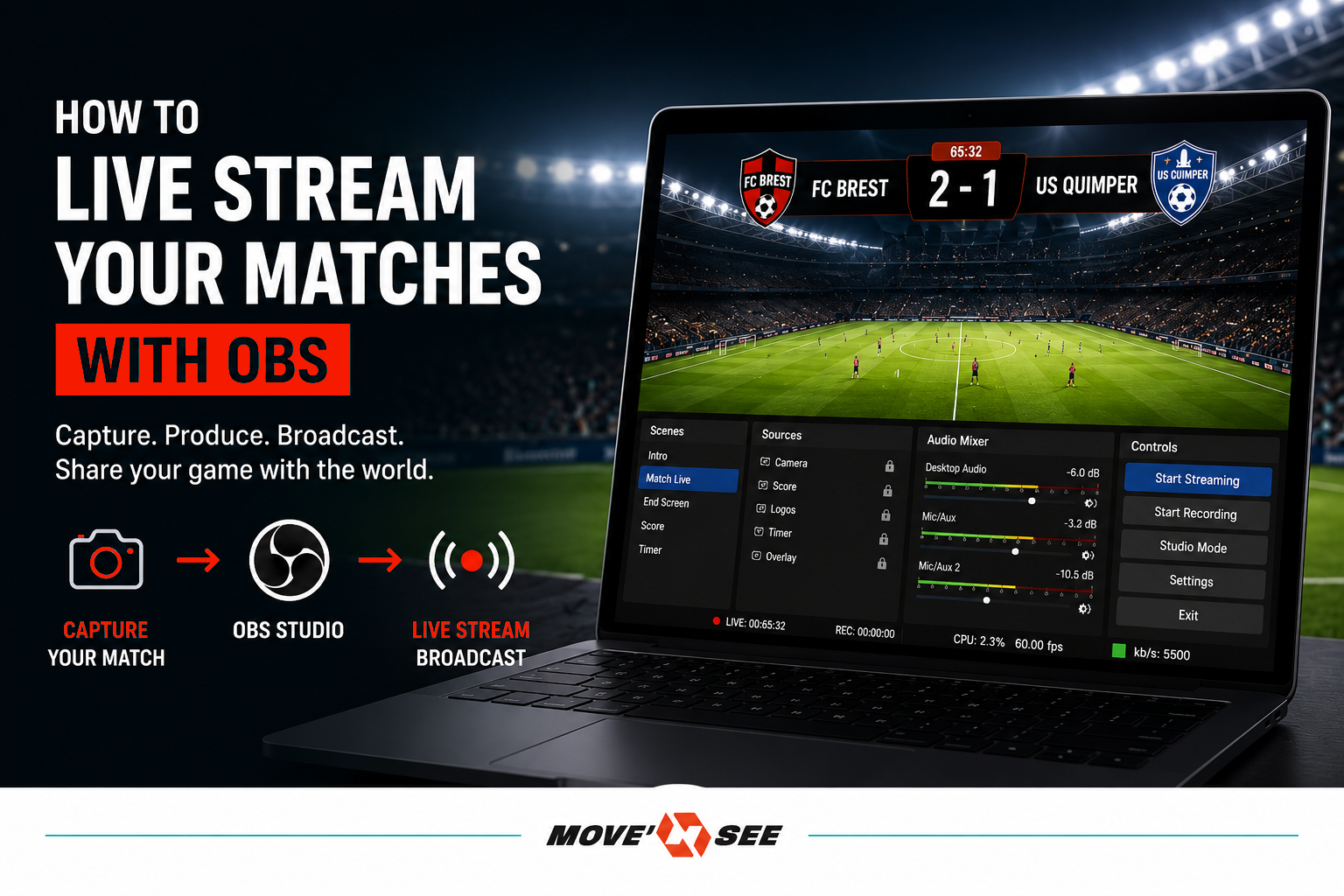
How to stream your matches live with OBS?
Products
Pix4team 2
Streaming a match live is not just about sending a video feed over the Internet.
Depending on the club's needs, it may be necessary to add a scoreboard, a timer, team logos, a sponsor banner, live commentary, or multiple video sources.
This is where software like OBS can become useful.
In this article
What is OBS?
OBS is a free and open-source software available for Windows, Mac, and Linux. It is used to prepare and broadcast a video production from a computer. It allows you to combine multiple elements into a single scene:
- the main match video;
- a second camera;
- a microphone or audio mixer;
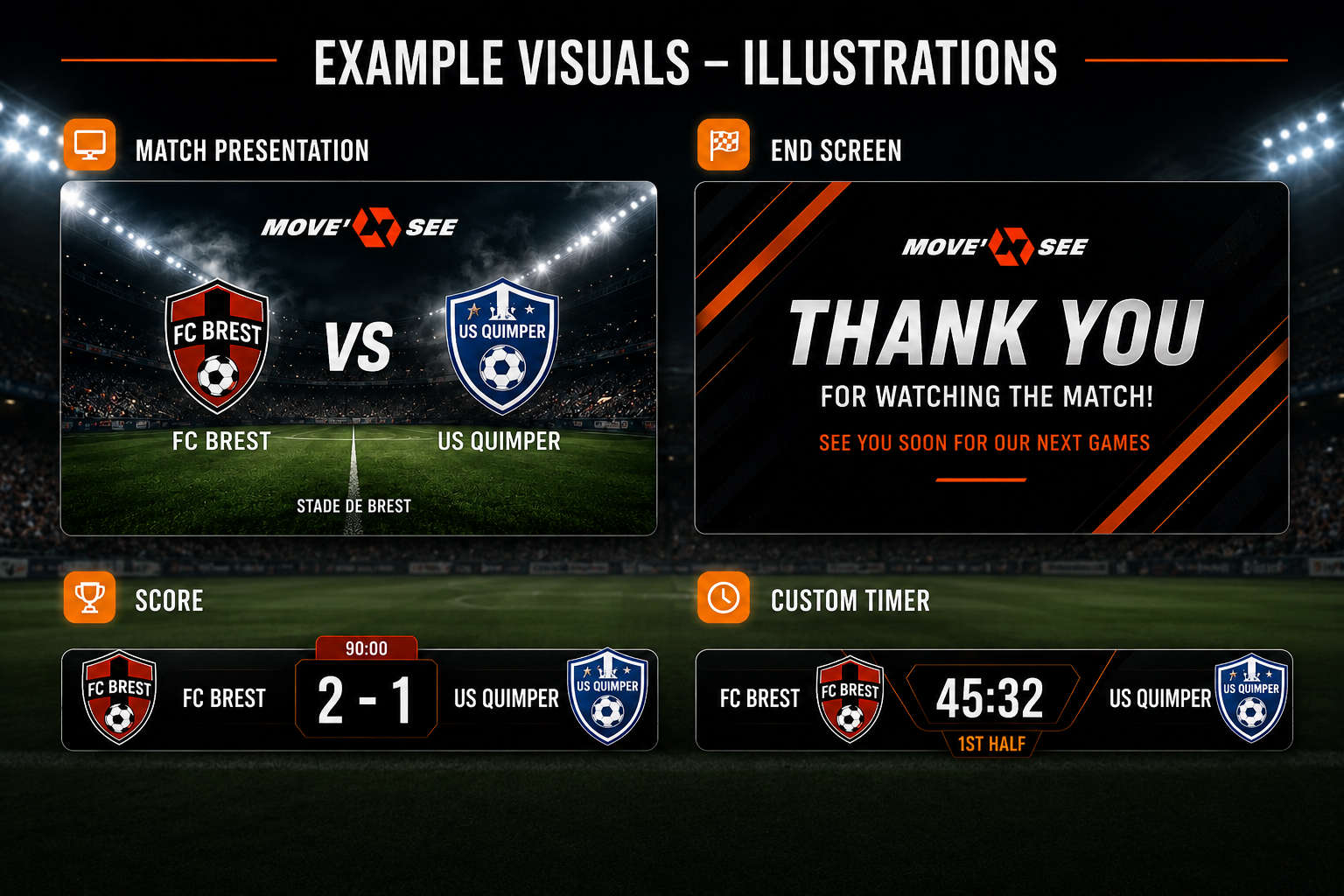
- a scoreboard and timer;
- team and sponsor logos;
- a waiting video or ending screen.
OBS collects the different sources, combines them, and generates a video stream that is sent to a compatible streaming platform. It therefore acts as a compact video production studio.
Is OBS required to stream a match?
No. With a solution like PIX4TEAM 2, it is possible to automatically film a match and stream directly to a compatible platform, without using a computer running OBS.
Direct streaming is often the best choice when the club uses a single camera, wants to minimize cabling, and does not have a dedicated operator for the production.
OBS becomes particularly useful when the club wants to create a more customized production.
Two possible setups
OBS handles the streaming
PIX4TEAM 2 automatically tracks the action, while the computer adds the graphics and sends the final stream.
Ideal for:
- multiple cameras;
- live commentary;
- custom scenes;
- more advanced production.
PIX4TEAM 2 streams directly
The robot handles automatic tracking and streams directly to the selected platform.
Ideal for:
- quick setup;
- a single camera;
- fewer cables;
- no dedicated production operator.
When should you use OBS?
Add custom graphics
The club can include its logo, team colors, the competition name, and the sponsors associated with the match.
Add multiple cameras
One main camera can film the field while another source shows the bench, the stands, the scoreboard, or interviews.
Add live commentary
The computer can receive audio from a microphone or an audio mixer to provide live commentary.
Display a scoreboard or timer
The scoreboard can be integrated into the scene and updated manually during the match or fed automatically by a compatible external system.
Prepare multiple scenes
Waiting screen, match introduction, halftime, interviews, or ending screen: the live production operator can switch between layouts at the right moment.
How do you get the camera feed into OBS?
A computer generally cannot receive an HDMI signal directly as if it were a webcam. You need a HDMI to USB capture device.
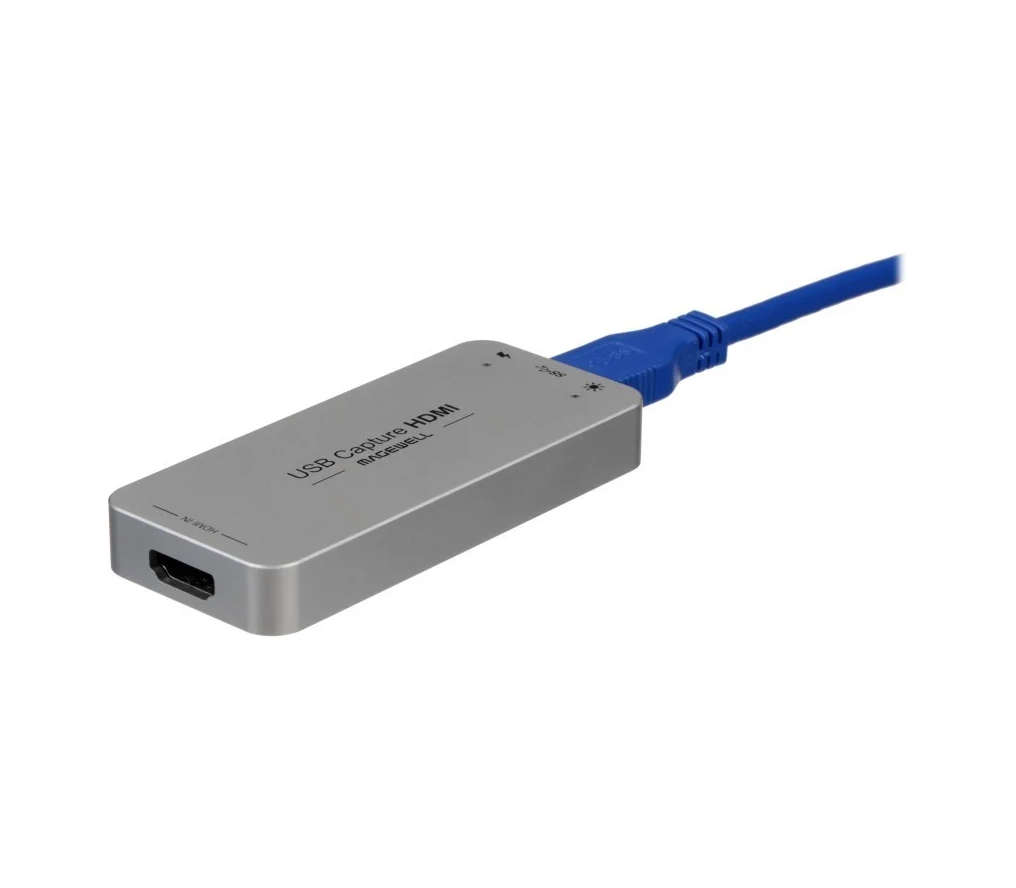
https://shop.movensee.com/en/products/accessories/magewell-usb-capture-hdmi-gen-2.html
Camera → HDMI to USB Capture Device → Computer with OBS
In OBS, the capture device appears as a video source. It can then be added to a scene, resized, and combined with other graphics or audio elements.
Using the camera with PIX4TEAM 2 and OBS at the same time
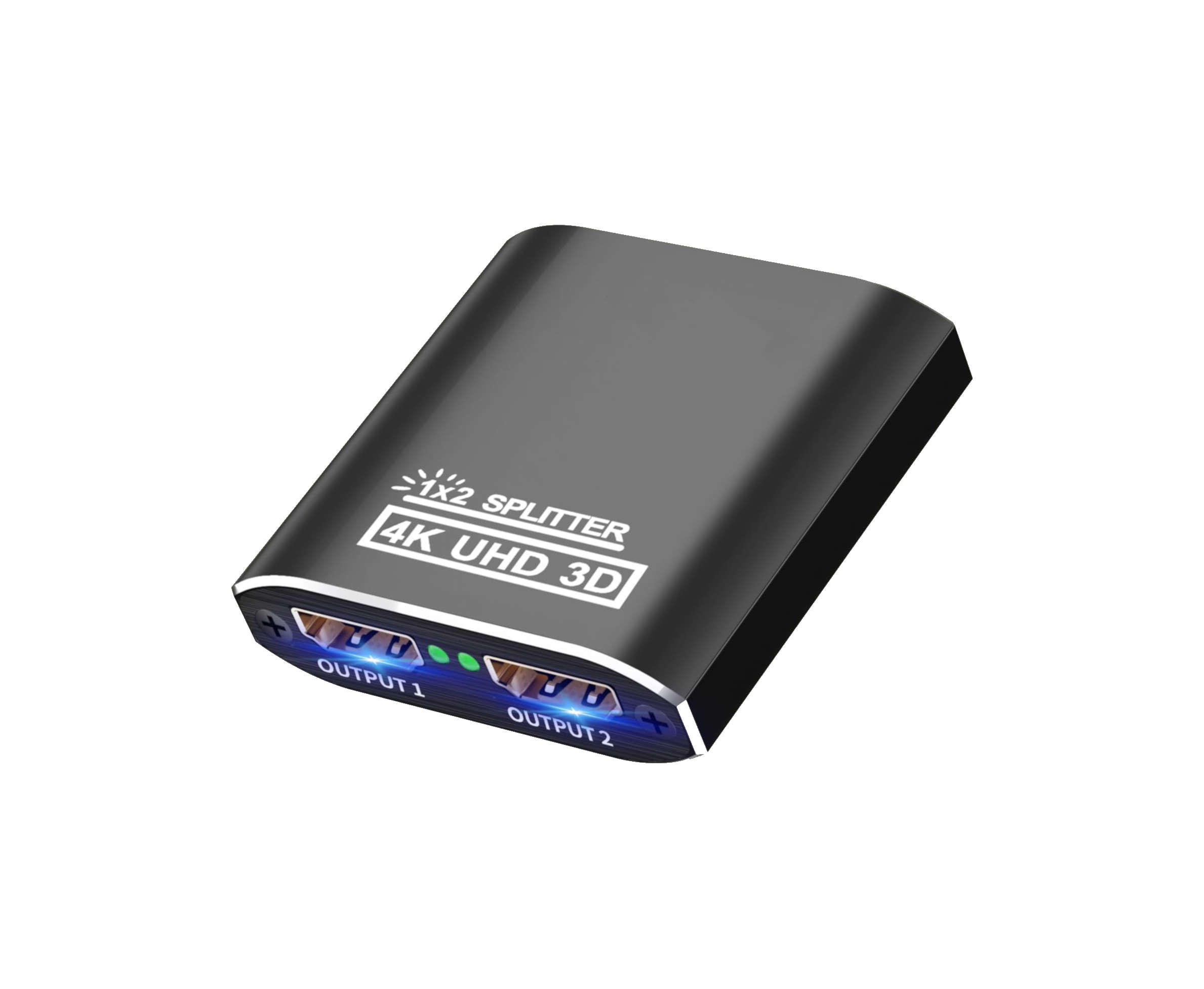
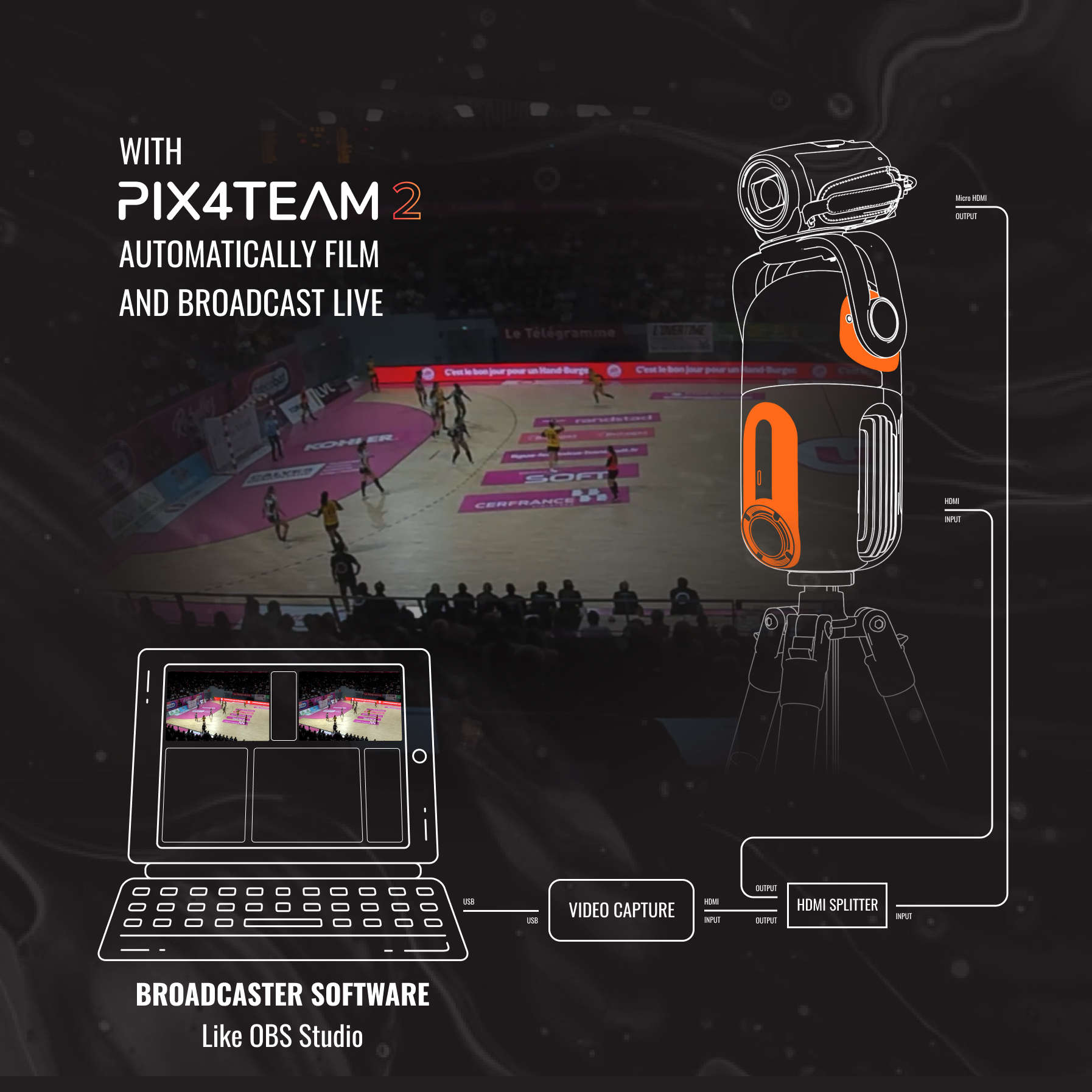
When the camera is connected to the robot, an HDMI splitter allows the video signal to be sent simultaneously to PIX4TEAM 2 and to the computer.
Camera → HDMI Splitter → PIX4TEAM 2
↳ HDMI Capture → OBS
↳ HDMI Capture → OBS
Always test the splitter, the capture device, and the cables before an event. Some HDMI accessories may introduce compatibility or stability issues.
What equipment do you need?
- PIX4TEAM 2;
- a compatible camera;
- a reliable computer;
- OBS installed and configured;
- an HDMI to USB capture device;
- an HDMI splitter if required;
- appropriate HDMI cables;
- a microphone or audio interface;
- a stable Internet connection;
- a reliable power supply for each device.
Which Internet connection should you use?
The quality of a live stream depends heavily on the upload speed, meaning the connection's ability to send the video to the streaming platform.
For high-quality streaming, Move’N See recommends a stable upload speed of at least 8 Mbps.
The recommended order is usually as follows:
- Ethernet connected to fiber or a reliable router;
- a dedicated 4G or 5G router with an Ethernet output;
- a stable Wi-Fi network;
- a mobile hotspot, after performing a real-world test.
An Ethernet cable secures the local connection, but it cannot compensate for an insufficient Internet connection.
Test under real conditions
An empty venue in the morning does not necessarily reflect match-day conditions. As the stands fill up, the mobile network or Wi-Fi may become more congested.
Perform a test:
- at the exact installation location;
- at a time close to the actual match;
- using the same router and cables;
- with the planned resolution;
- for a sufficiently long duration.
Streaming from OBS to a platform
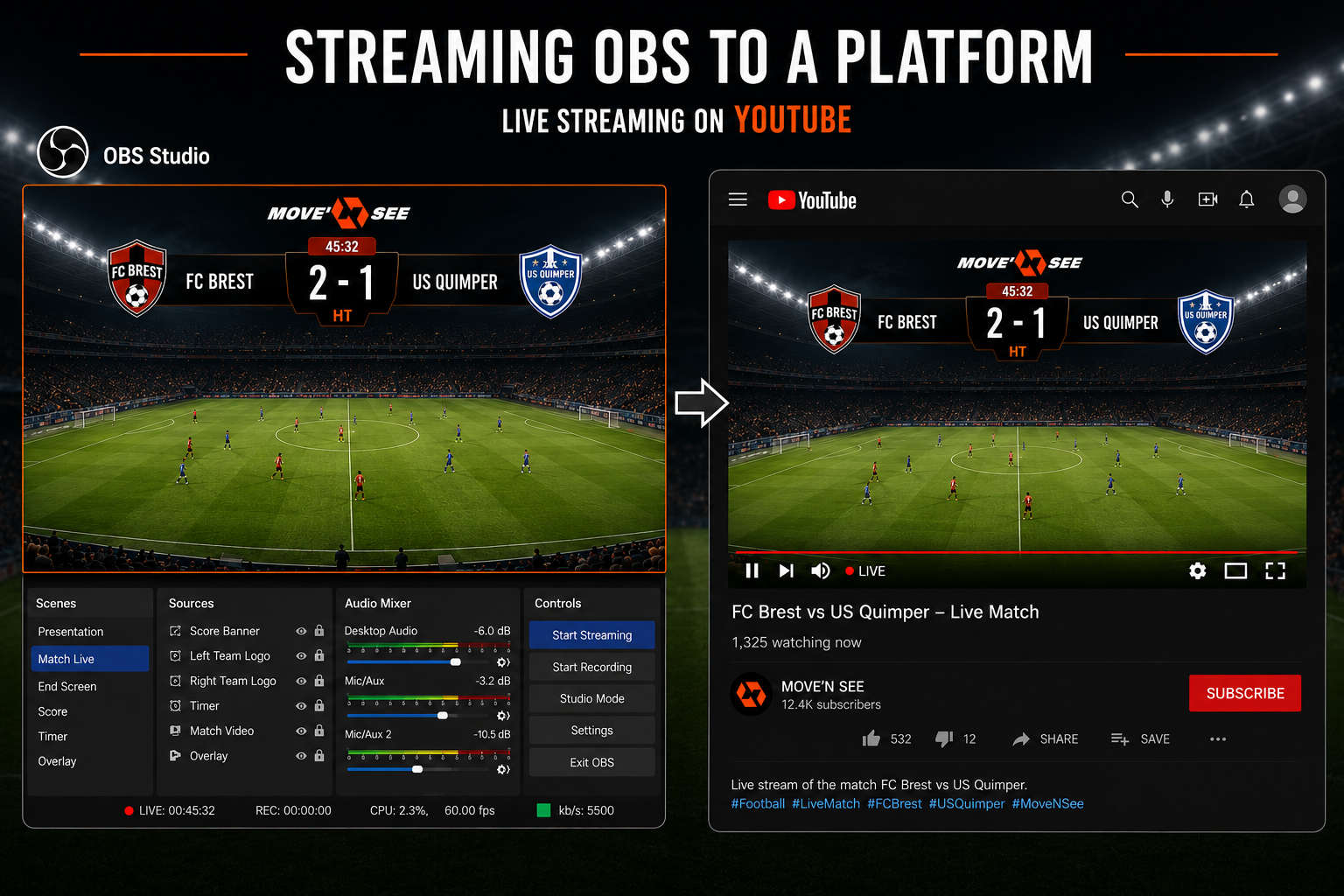
The streaming platform generally provides a server address and a stream key. These details are entered in the OBS settings.
The stream key must remain confidential. Anyone who obtains it could stream to your channel.
OBS or direct streaming: which solution should you choose?
Choose direct streaming from PIX4TEAM 2 if you are looking for a quick setup, a single camera, and minimal configuration.
Choose OBS if you want multiple video sources, live commentary, advanced graphics, and multiple scenes.
The two approaches complement each other. PIX4TEAM 2 automates action tracking, while OBS can enhance the production with a more advanced live broadcast.
Start simple before adding complexity
For your first live stream, keep your setup simple, reliable, and fully tested. First validate the framing, audio, Internet connection, and backup recording. Then gradually add commentary, additional scenes, extra cameras, and graphic overlays.
Debrief your videos immediately after a training session or play period, without needing to access the PIX4TEAM2 which has just filmed
Automatic video capture to improve sports performance!

The power of videos as an accelerator of progress in sports

5 reasons why remote coaching is a game-changer on your riding journey (for both riders and coaches!)
What do you need to Film Your Equestrian Sessions with PIXEM 2?